Bench answer
The reliable starting point
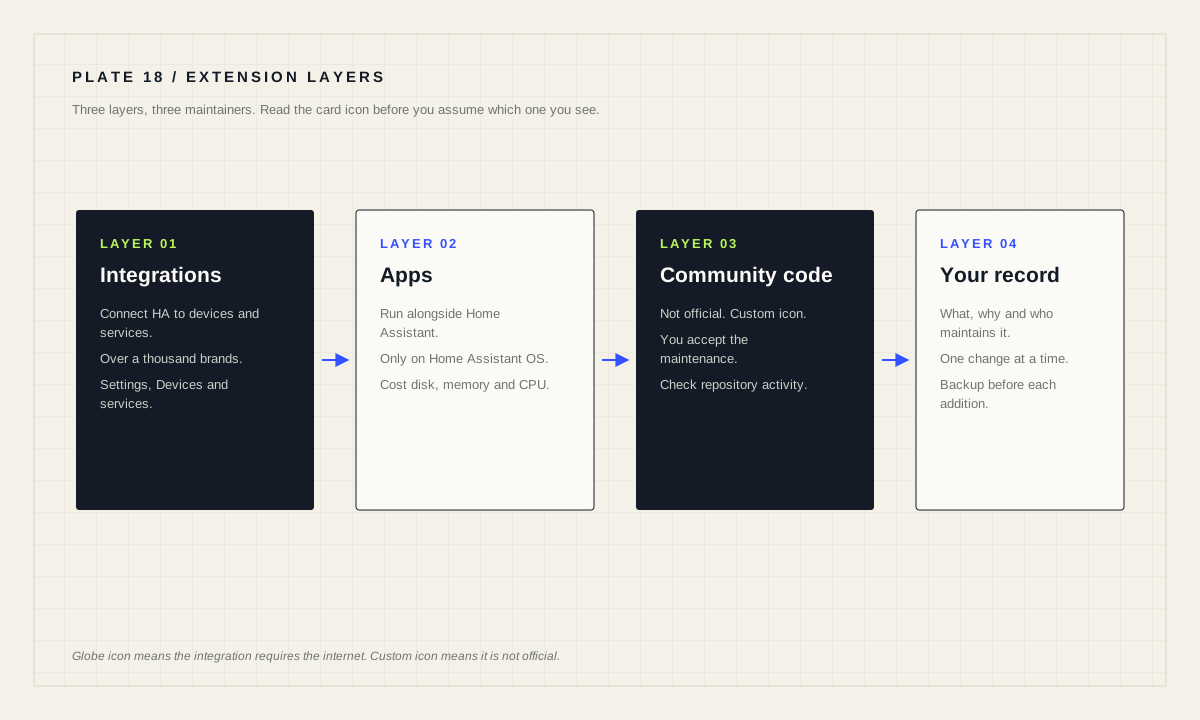
An integration connects Home Assistant to a device or service and is usually added from Settings → Devices & services. An app is a third-party application that runs alongside Home Assistant, installed from Settings → Apps, and it is only supported on Home Assistant Operating System. Community custom code, typically obtained through HACS, is neither: it is unofficial software you have chosen to maintain. Add one thing at a time, and check the card icons — a globe means the integration needs the internet, and a custom icon means it is not official.
Name the three layers before you install anything
Integrations are pieces of software that allow Home Assistant to connect to other software and platforms. The documentation's own example is Philips Hue: the Hue integration lets Home Assistant talk to the Hue Bridge, and compatible devices connected to that bridge appear in Home Assistant as devices. Home Assistant works with devices and services from over a thousand brands, and most can be added through the user interface in a few steps.
Apps are third-party applications that provide additional functionality. The distinction the documentation draws is precise and worth memorizing: apps run directly alongside Home Assistant, whereas integrations connect Home Assistant to other apps. Apps are only supported when using Home Assistant Operating System, and they are installed from the app store under Settings → Apps.
Community custom code is the third layer and the one with no official guarantee. The concepts documentation acknowledges it indirectly: an integration card can show a custom icon indicating that it is not an official Home Assistant integration but was custom made, and it notes such code could be downloaded from HACS. That icon is your signal that support, security review and continued maintenance are outside the project.
Read the icons on the integration card
The integrations page encodes three facts in small icons, and most people never learn them. A globe icon indicates that this integration requires the internet. A file icon indicates that the integration was not set up via the UI — you either set it up in configuration.yaml or it is a dependency set up by another integration, and to configure it you will need to edit that file. A custom icon indicates that this is not an official Home Assistant integration but was custom made.
Those three icons answer the three questions that matter when something breaks. Will this stop working when the internet drops? Where do I change its settings? Who do I ask for help? Take thirty seconds to scan the icons on your integrations page today, before anything is broken, and you will have a map of your own fragility.
Adding an integration, the documented way
Go to Settings → Devices & services. The page shows the integrations you already have, some of which were installed automatically, and a Discovered section listing devices found on your network. If something you own appears under Discovered, select Add on it and follow the steps. Otherwise use Add integration in the bottom-right corner and search by name.
During setup you are usually asked for a name and an area, and often for options specific to that integration. Assign the area at setup time rather than promising yourself you will tidy up later; areas are what make targeting a whole room possible in automations, and retrofitting them across fifty entities is joyless work.
After setup, open the integration to see its entities, the automations, scripts and scenes related to each entity, and recent activity. That related-items list is the fastest way to answer “what will I break if I remove this?” — check it before deleting an integration, not after.
Apps are not free in resources
The documentation gives an unusually direct warning: if you feel like installing every app that looks interesting, beware that apps can use quite a bit of resources in terms of disk space, memory, and additional load on the processor. On a minimum-specification single-board computer, four or five enthusiastic app installations are enough to make the whole system feel unwell.
Install apps the way you would install anything with a running cost: one at a time, with a reason, and with a note of what you expect it to do. If system responsiveness degrades, the most recently added app is the first suspect. Among the most used apps are the ones that provide file access and let you edit files in Home Assistant — a reasonable early addition because it makes every later configuration task easier.
Remember the platform boundary from the installation documentation: apps exist only on Home Assistant Operating System. If you are running Home Assistant Container, an app you read about is not missing or broken; it is simply not part of your installation type, and the equivalent is a separate service you run and maintain yourself.
Community custom code: adopt it deliberately
HACS is a community project, not part of Home Assistant, and installing something through it means you have accepted a maintenance relationship with a volunteer's repository. That can be entirely reasonable — a great deal of genuinely useful work lives there — but it should be a decision rather than a reflex.
Three habits keep this layer healthy. First, prefer an official integration whenever one exists for the same device, even if the community version has more features; the official one survives release cycles. Second, before installing, look at when the repository was last updated and whether issues are being answered. Third, write down what you installed and why, because a custom component that breaks after a Home Assistant update will not announce itself clearly — it will present as an entity that quietly stopped appearing.
When a Home Assistant release breaks something, custom code is the first thing to check and the first thing to remove for a test. Restoring a backup is the clean way to get back to a known state, which is another reason the backup habit belongs at the front of every extension project.
Before you add anything
- Backup taken and, ideally, restorable.
- Layer identified: integration, app, or community custom code.
- For integrations: card icons read — internet, YAML, or custom.
- For apps: installation type is Home Assistant Operating System, and resource cost accepted.
- For custom code: repository activity checked and the choice recorded.
- Area assigned at setup so automations can target rooms later.
- One change at a time, so a regression has one obvious suspect.
Removing cleanly is part of adding
Anything you install, you will eventually remove. The integration detail page is where that starts: it lists related automations, scripts and scenes, so you can see the dependencies you are about to orphan. Rename, modify and delete are all available from that page.
Removal leaves debris in predictable places. Automations that referenced now-missing entities keep running and fail silently at the action step. Dashboards keep cards that render as unavailable. Neither is dangerous, but both erode trust in the system, and both are far easier to fix in the ten minutes after removal than in six months.
# A one-line record per addition keeps this layer honest.
# Keep it as a note in your own documentation, not in Home Assistant.

2026-07-28  integration  Workday        official   internet: no   reason: workday automations
2026-07-28  app          File editor    official   internet: no   reason: edit configuration
2026-07-28  custom       example-card   community  internet: no   reason: dashboard layout
The test of a well-extended installation is not how many things it runs. It is whether you can answer, for every extra piece, who maintains it and what happens the day they stop.
Source desk
Primary documentation used for this guide. Interface names and behaviors can change; confirm the current page before changing a live installation.
- Concepts and terminologyOfficial definitions of integrations, apps, entities, areas and card icons.Official source ↗
- Adding integrationsOfficial walkthrough for discovering, adding, modifying and inspecting integrations.Official source ↗
- InstallationOfficial installation types and the app-support boundary.Official source ↗
Source review completed .
Frequent questions
What is the difference between an integration and an app in Home Assistant?
Apps run directly alongside Home Assistant and provide additional functionality, whereas integrations connect Home Assistant to other software and platforms.
Can I install apps on any Home Assistant installation?
No. Apps are only supported when using Home Assistant Operating System, and they are installed from the app store under Settings > Apps.
What does the globe icon on an integration card mean?
It indicates that the integration requires the internet. A file icon means it was configured in configuration.yaml rather than the UI, and a custom icon means it is not an official Home Assistant integration.
Do apps affect system performance?
Yes. The documentation warns that apps can use quite a bit of resources in terms of disk space, memory, and additional load on the processor.
How do I see what depends on an integration before removing it?
Open the integration, then an entity, to see a list of related automations, scripts and scenes along with recent activity for that entity.