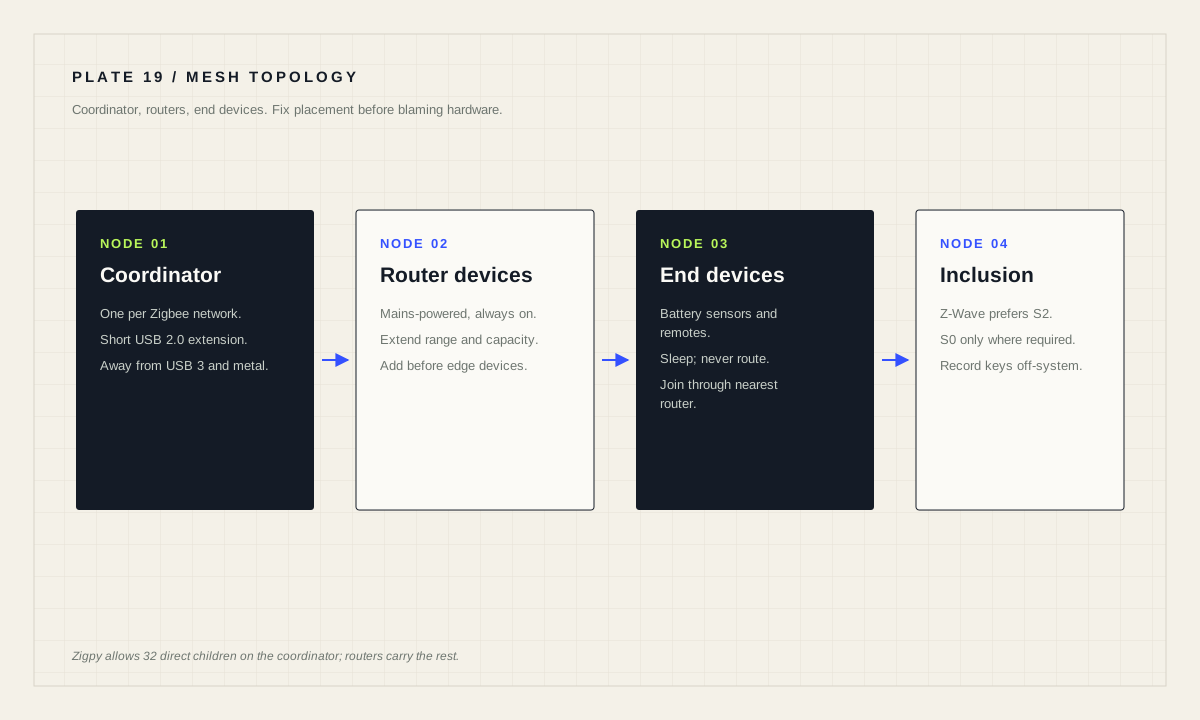
Bench answer
The reliable starting point
Put the coordinator on a short USB extension cable before you do anything else — the Z-Wave documentation states that many reported issues result from RF interference caused by the system's USB ports and encourages all users to use an extension cable. Add mains-powered router devices before expecting battery devices to work at the edges. On Z-Wave, let the system prefer Security S2 and keep S0 for older devices that require it, such as door locks. On Zigbee, leave the channel at the ZHA default unless you have a measured reason to change it.
The coordinator placement is the first fix
Start here because it resolves more cases than anything else. The Z-Wave integration documentation states plainly that many reported issues result from RF interference caused by the system's USB ports, and that this can manifest as devices that will not include at all, devices that will not include securely, sensors with erroneous values from corrupted packets, delayed control, or no ability to control devices. It encourages all users to use a USB extension cable to prevent such interference, and notes this will nearly always be the first troubleshooting step requested anyway.
The Zigbee side has the same physics. Zigbee operates in the 2.4 GHz band, where USB 3 ports and their cabling are noisy neighbours. A short USB 2.0 A male-to-female extension cord that moves the adapter away from the chassis, away from metal cabinets and away from dense cabling costs very little and removes a class of symptoms you would otherwise misattribute to devices.
After adding the extension cable on a Z-Wave network, rebuild network routes so the mesh re-learns paths under the improved conditions. Doing this in the wrong order — rebuilding routes while the coordinator is still buried behind the machine — simply records the bad topology more firmly.
How a Zigbee network is actually shaped
ZHA is a hardware-independent Zigbee gateway implementation that can replace most proprietary Zigbee gateways, built on the open-source zigpy library, so any zigpy-compatible coordinator can be used. The structure it creates is worth understanding before you buy devices.
A Zigbee network can have only one coordinator. Router devices are mains-powered hardware such as outlets or always-on plugs; most mains-powered devices automatically act as routers. End devices are typically battery-powered, such as remotes and motion sensors. A device can belong to only one Zigbee network, and the network depends heavily on having multiple router devices to expand coverage and increase capacity.
There is a concrete ceiling worth knowing: the zigpy library has an upper limit of 32 direct children on the coordinator, but you can still have hundreds of devices in total connected indirectly through routes via router devices. The documentation's own worked example shows a coordinator with three routers reaching a 77-device limit. That is why “add a few mains-powered plugs” is real network engineering rather than shopping.
Leave the Zigbee channel alone unless you have evidence
Valid Zigbee channels are 11 to 26, all in the 2.4 GHz band. The documented best practice is not to change the Zigbee channel from the ZHA default. The temptation to change it usually arrives after reading about Wi-Fi overlap, and it is usually the wrong first move.
If you do change it, know the cost. The Smart option scans all channels and picks the best one, preferring 15, 20 and 25 over other channels — but this is a one-time operation that does not continuously monitor and re-select if interference appears later. After a change, it might take up to an hour for all devices to reconnect to the new channel, and some may not follow at all.
Before touching the channel, exhaust the cheaper interventions: extension cable, coordinator placement, more mains-powered routers, and physical separation from Wi-Fi access points. Note also that Wi-Fi-based Zigbee bridges are not recommended for ZHA with EZSP radios; a directly attached adapter avoids a whole category of latency and reliability questions.
Z-Wave inclusion and the S0 / S2 decision
Z-Wave has two generations of encryption. Security S0 imposes significant additional traffic on your mesh and is recommended only for older devices that do not support S2 but require encryption to work, such as door locks. Security S2 does not impose additional network traffic and adds benefits — for example, end devices using S2 require the hub to report whether it received and understood their reports. By default, Z-Wave prefers S2 when supported, and uses S0 only when absolutely necessary.
The practical guidance follows directly: do not force S0 on modern devices in the belief that more security is better. You will pay for it in mesh traffic and get nothing back. Let the default preference stand.
On first setup you may be prompted for network security keys. If you are using Z-Wave for the first time, leave all fields empty and submit — the system generates the keys for you. If the adapter has already been paired with secure devices, enter the previously used network key as the S0 key, and the S2 keys are generated automatically. Afterwards the keys can be viewed under Settings → Apps → Z-Wave JS on the Configuration tab, which shows the three S2 keys and the S0 key; the legacy “network security key” setting is identical to the S0 key.
# Store these outside Home Assistant, in a password manager.
# They are required to access securely paired devices after a rebuild.

S2 Unauthenticated : ................................
S2 Authenticated   : ................................
S2 Access Control  : ................................
S0 (legacy)        : ................................

Adapter model, firmware and USB path:
Location of the coordinator and extension cable:Classic inclusion, SmartStart and one thing that no longer works
Home Assistant supports both classic inclusion and SmartStart. Classic inclusion means you put both the hub and the device into the corresponding mode. With SmartStart, the hub listens continuously for inclusion requests: you scan the Z-Wave QR code on the product with an adapter that supports SmartStart, and no further action is required — the product is added automatically within ten minutes of being switched on in the network vicinity. Not all devices support SmartStart; some require classic inclusion.
During classic inclusion of an S2 device you may be prompted for a PIN provided with the device; it is usually in the documentation and printed on the device itself. If the device supports Z-Wave Long Range you may be prompted to choose the network type, with Long Range suggested when the device is far from others or that spot has had connection issues before, and noted as potentially helping preserve battery life.
One documented rule prevents a common dead end: do not initiate device inclusion from the Z-Wave adapter itself. That is no longer supported. Start inclusion from Home Assistant, then put the device into its own inclusion mode according to its manual.
Regions, backups and moving to a new adapter
Z-Wave frequency depends on region. For 700 and 800 series adapters the frequency can be changed, but the frequency of end devices cannot — so you must buy devices specific to your region. With the Z-Wave JS app, Home Assistant automatically sets the radio frequency region to match your configured location, and Automatic derives it from the location under Settings → System → General. Overriding it manually requires that all your Z-Wave devices are specified for that region.
ZHA performs automatic backups of your Zigbee network, which allows restoring or migrating to a different coordinator; manual backups can also be created from the configuration page under Network Settings. After restoring a Home Assistant backup you can reconfigure ZHA or migrate to a new coordinator without losing settings or connected devices — useful when a radio fails or a newer model appears. ZHA supports migration between adapters based on Silicon Labs, Texas Instruments, or ConBee/RaspBee chips when the backup was made from inside ZHA. Expect a few minutes during which existing devices cannot be controlled while they rejoin.
One device-specific trap worth naming: Philips Hue bulbs previously paired to another bridge will not appear during a ZHA search. They must be restored to factory defaults — simply removing them from the old bridge is not sufficient — and when resetting with a remote, keep other recently powered-on Hue bulbs away or you risk resetting them too.
Radio commissioning gate
- Coordinator on a short USB extension, away from USB 3 ports and metal.
- Mains-powered router devices in place before battery devices at the edges.
- Zigbee channel left at the default unless a measured reason exists.
- Z-Wave left to prefer S2; S0 reserved for devices that require it.
- Security keys recorded outside Home Assistant.
- Region correct, and end devices bought for that region.
- Network backup taken and its location written down.
Source desk
Primary documentation used for this guide. Interface names and behaviors can change; confirm the current page before changing a live installation.
- Z-WaveOfficial inclusion, security key, interference, region and migration guidance.Official source ↗
- Zigbee Home AutomationOfficial ZHA topology, channel policy, device limits and backup guidance.Official source ↗
- InstallationOfficial note that Thread and Z-Wave are controlled by apps.Official source ↗
Source review completed .
Frequent questions
Why do people insist on a USB extension cable for Zigbee and Z-Wave?
The Z-Wave documentation states that many reported issues result from RF interference caused by the system's USB ports, and encourages all users to try a USB extension cable before requesting support.
How many devices can one Zigbee coordinator handle?
The zigpy library has an upper limit of 32 direct children on the coordinator, but hundreds of devices can be connected in total indirectly through router devices.
Should I change the Zigbee channel?
The documented best practice is not to change the Zigbee channel from the ZHA default. If you do, the Smart option prefers channels 15, 20 and 25, and devices may take up to an hour to reconnect.
Should I use S0 or S2 security for Z-Wave devices?
Z-Wave prefers S2 when supported. S0 imposes significant additional mesh traffic and is recommended only for older devices that require encryption to work, such as door locks.
What is SmartStart in Z-Wave?
SmartStart adds a device by scanning its Z-Wave QR code; the device is added automatically within ten minutes of being switched on nearby. Devices that do not support it need classic inclusion.