Bench answer
The reliable starting point
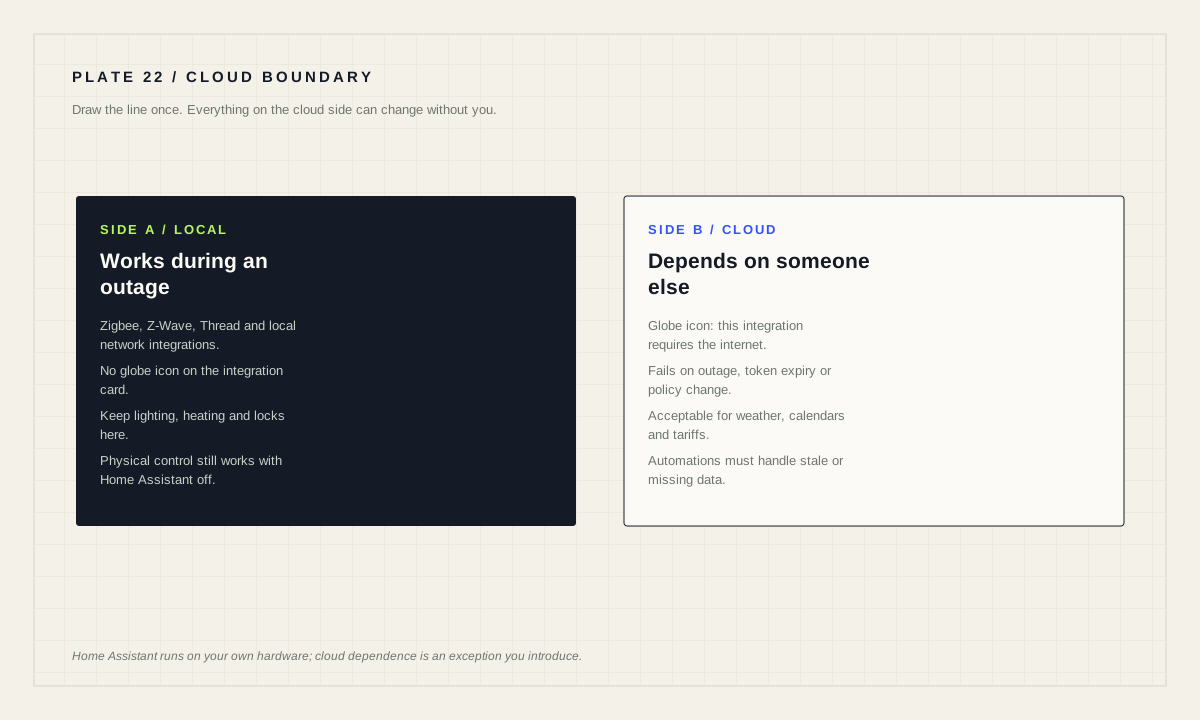
Open Settings → Devices & services and read the icons: a globe means that integration requires the internet. Everything behind a globe is a device that can stop responding because of an outage, an account change or a vendor decision. Keep lights, locks, heating and anything safety-adjacent on local protocols where you can, accept cloud dependence where the convenience genuinely outweighs the risk, and always preserve an ordinary manual control.
Find the boundary in your own installation
Home Assistant works with devices and services from over a thousand brands, and it does not hide which ones need the internet. On the integrations page, a globe icon indicates that the integration requires the internet. That single indicator is the most useful reliability audit available to you, and it takes about a minute to run.
Go to Settings → Devices & services and write down every integration carrying a globe. That list is your outage surface. If the answer includes the lights in the hallway, the heating, or the lock on the front door, you have found a design decision worth revisiting.
While you are there, note the other two icons. A file icon means the integration was not set up through the interface — it lives in configuration.yaml or was created as a dependency of another integration, and configuring it means editing that file. A custom icon means it is not an official Home Assistant integration.
What a cloud dependency actually costs
The cost is rarely a device that stops forever. It is a set of smaller, more corrosive effects. Latency: a button press travels to a data centre and back rather than across the room. Fragility: an internet outage, an expired token or a vendor authentication change breaks devices that are physically fine. Change without consent: a firmware update or a policy change can alter or remove a capability you had built an automation around.
There is also an account dimension. Cloud devices are tied to a login, which means household access, password changes and account recovery become part of your home's reliability story. That is manageable, but it should be planned rather than discovered.
None of this makes cloud integrations illegitimate. Some services are cloud-only by nature and genuinely useful. The point is to spend the dependency where it buys something, and to avoid spending it on a light switch.
Triage devices by consequence, not by brand
Sort your devices into three groups and treat each differently.
Must work offline. Lighting on circulation routes, heating, locks, anything a guest or a child needs to operate, anything related to safety. These belong on local protocols — Zigbee, Z-Wave, Thread or a local network integration — and they must retain an ordinary physical control that works with Home Assistant switched off entirely.
Should work offline, but the world will not end. Decorative lighting, media, blinds. Prefer local, accept cloud if the alternative is significant expense.
Cloud is inherent. Weather, calendars, energy tariffs, delivery tracking, anything whose data lives on the internet by definition. There is nothing to migrate here; just make sure automations degrade sensibly when the data is stale or missing.
This triage is more useful than a brand list, because brands change. A vendor that is local today may add a cloud requirement tomorrow, and a cloud-only product line may gain local control. The categories survive; the specific verdicts do not.
Migrating a device to local control
Migration is usually not a software toggle; it is a replacement or a re-pairing, and it should be planned like one. Work one device class at a time, keep the old path running until the new one is proven, and expect a period where both exist.
Three practical points recur. First, a device can only belong to one Zigbee network at a time, so moving a bulb or sensor to a local coordinator means removing it from its old hub properly — and for some products, a factory reset is required rather than a removal. Second, entity IDs change when a device is re-added through a different integration, which quietly breaks every automation, script and dashboard card that referenced the old ID. Third, the integration page for each entity lists related automations, scripts and scenes, which is exactly the list you need before you swap anything.
# One row per device before you unpair anything.

Device            : hallway ceiling light
Old integration   : vendor cloud (globe icon)
Old entity_id     : light.hallway_vendor
Used by           : 3 automations, 1 script, 2 dashboard cards
New path          : Zigbee via local coordinator
New entity_id     : light.hallway
Manual fallback   : wall switch remains functional
Rollback          : keep vendor account until 14 days pass
After migration, re-test the automations rather than assuming. The most common post-migration failure is not a device that does not respond; it is an automation still pointing at an entity that no longer exists, failing silently at the action step.
Buying with the boundary in mind
The cheapest migration is the one you never have to do. Before buying, establish whether the device can be controlled entirely on your local network, and whether it needs a vendor account to function at all or only to set up. Those are different answers, and product pages rarely distinguish them clearly.
Prefer devices that speak an open local protocol directly. Prefer manufacturers whose integration is official rather than community-maintained, because official integrations move with Home Assistant releases. And prefer devices that keep working as ordinary devices — a smart switch that still functions as a switch when everything else is down is worth a premium.
Where a bridge is involved, ask what the bridge does when the internet drops. Some bridges are genuinely local and merely offer optional remote access; others are relays that stop passing local traffic without an internet connection. That distinction decides whether the whole product line belongs in your “must work offline” group.
Cloud-dependency audit
- Integrations with a globe icon listed.
- Each one classified: must work offline, should, or inherently cloud.
- Lighting, heating and locks confirmed on local paths where possible.
- Manual physical control preserved for every consequential device.
- Account ownership and recovery understood for remaining cloud services.
- Automations checked for graceful behaviour when cloud data is stale.
- Buying rule written down for the next purchase.
Make the degraded state deliberate
Whatever balance you land on, decide in advance how the house behaves when the cloud portion is unavailable. Automations that depend on a cloud entity should check that the entity is actually reporting before acting on it, rather than treating a missing value as a meaningful one.
Write the degraded behaviour down in plain language: which routines still run, which pause, and what a person should do instead. That short note is worth more than any amount of clever configuration, because the person reading it during an outage may not be you.
The goal is not purity. Plenty of excellent installations contain cloud integrations. The goal is that nothing important in your home depends on a service you cannot see, cannot fix, and were never asked about.
Source desk
Primary documentation used for this guide. Interface names and behaviors can change; confirm the current page before changing a live installation.
- Concepts and terminologyOfficial card icons, including the indicator for integrations requiring the internet.Official source ↗
- Adding integrationsOfficial integration discovery, detail pages and related-items lists.Official source ↗
- Securing your Home AssistantOfficial statement that Home Assistant runs on your own hardware without cloud dependence.Official source ↗
Source review completed .
Frequent questions
How do I tell which Home Assistant integrations need the internet?
On the integrations page under Settings > Devices & services, a globe icon on the integration card indicates that this integration requires the internet.
Does Home Assistant itself need the cloud?
No. Home Assistant runs on your own hardware and does not depend on any cloud service to work, so your smart home keeps working when the internet is down.
Which devices should I prioritise moving to local control?
Devices whose failure is consequential: lighting on circulation routes, heating, locks, and anything a guest or child must be able to operate.
What breaks when I re-add a device through a different integration?
The entity ID usually changes, which silently breaks automations, scripts and dashboard cards that referenced the old one. Check the entity's related items list before migrating.
What does the file icon on an integration card mean?
It indicates the integration was not set up via the UI. It was configured in configuration.yaml or set up as a dependency of another integration, so changes must be made in that file.