Bench answer
The reliable starting point
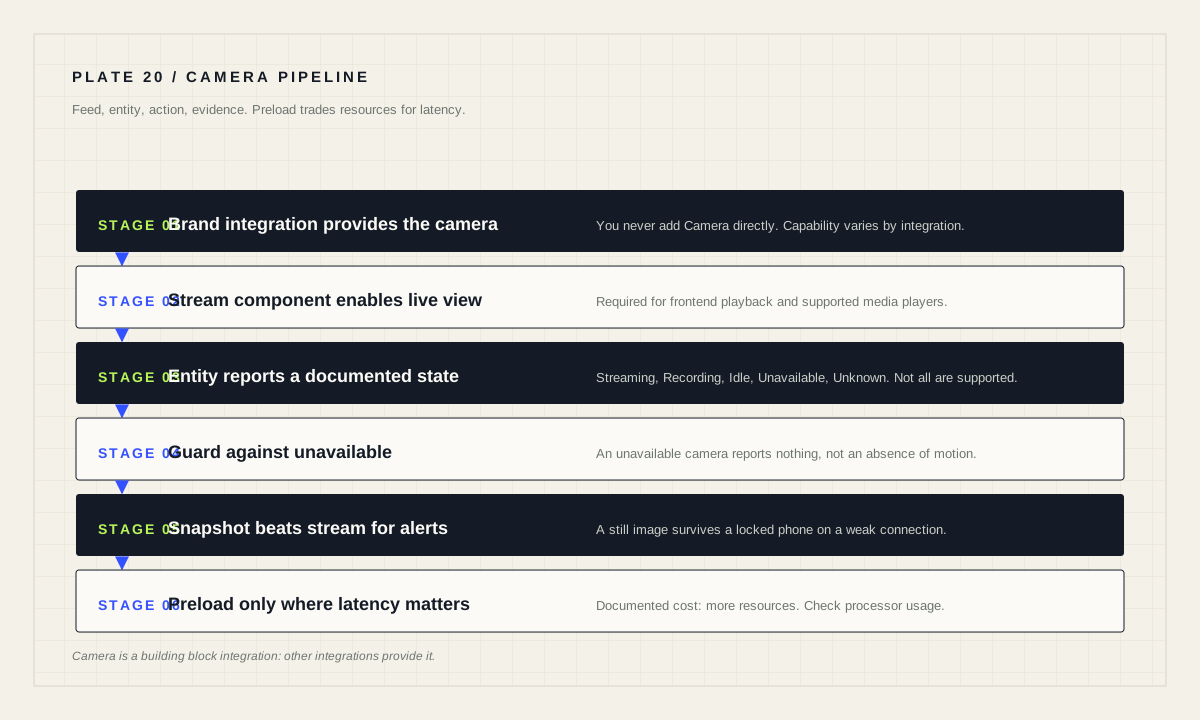
Camera is a building block integration: you do not add it directly, other integrations provide it. Streaming in the frontend requires the stream integration and camera support. Use camera.snapshot for evidence in notifications rather than a live feed, because a still image reaches a phone reliably where a stream often does not. Turn on Preload stream only when latency genuinely matters, and check processor usage afterwards — the documentation warns it uses more resources.
Camera is a building block, not an integration you add
The Camera integration is documented as a building block integration: it cannot be added to Home Assistant directly, but is used and provided by other integrations. This is the first thing to understand, because searching “Camera” in the add-integration dialog and finding nothing useful is a common early confusion.
What you actually add is the integration for your camera brand or protocol. That integration then uses the camera building block to provide entities, actions and functionality you can use in automations and dashboards. The building-block page documents what those shared capabilities are, which makes it the right reference regardless of which brand you own.
The practical implication is that capability varies by integration. The building block defines what is possible; your specific integration decides how much of it is implemented. Read your brand's integration page for the gaps, and treat missing features as a property of that integration rather than a fault in Home Assistant.
Camera states, and why unavailable is not off
A camera can report Streaming (transmitting a live playback of the video it is recording), Recording (currently capturing video content), Idle (not currently capturing), Unavailable (the entity is currently unavailable) and Unknown (the state is not yet known). Not all camera integrations support all states.
Automations must treat those last two as distinct from “nothing is happening”. A camera that is unavailable is not reporting an absence of motion — it is reporting nothing at all. Any automation that concludes “all quiet” from a camera entity should first confirm the entity is actually reporting, or it will be most confidently wrong at exactly the moment the camera has dropped off the network.
Because support varies, verify what your camera actually reports before writing logic around a state. Open the entity, watch it through a real event, and build only on the states you have observed.
Streaming, preload and the resource bill
If your camera supports it and the stream integration is set up, you can stream cameras in the frontend and on supported media players. That is the mechanism behind live view and behind sending a feed to a screen.
The Preload stream option starts the camera feed when Home Assistant starts and keeps the stream alive. The benefit is reduced latency when opening the stream in the frontend, when using the camera.play_stream action, and with the Google Assistant integration. The documented cost is direct: it uses more resources on your machine, and it is recommended to check processor usage if you plan to use this feature.
Treat preload as a per-camera decision rather than a global setting. A doorbell camera where a two-second delay matters is a reasonable candidate. Four garden cameras preloaded continuously on a small board is how an installation becomes sluggish for reasons nobody remembers a month later.
Send a snapshot, not a stream
The most useful camera automation in most homes is not a live feed. It is a still image attached to a notification, because a snapshot arrives on a locked phone over a poor connection where a stream stalls. The camera building block provides camera.snapshot for exactly this, alongside camera.record for creating a recording of a live feed, and camera.play_stream for playing a stream on a supported media player.
alias: "Front door — snapshot on motion"
description: "Evidence first; a still image survives a weak connection."
triggers:
  - trigger: state
    entity_id: binary_sensor.front_door_motion
    to: "on"
conditions:
  - condition: not
    conditions:
      - condition: state
        entity_id: camera.front_door
        state: "unavailable"
actions:
  - action: camera.snapshot
    target:
      entity_id: camera.front_door
    data:
      filename: "/config/www/snapshots/front_door_latest.jpg"
mode: single
Two design notes. Keep the file path stable and overwrite it rather than accumulating thousands of timestamped images on a device whose storage you care about. And guard the automation against an unavailable camera, as above, so a network blip produces a clean no-op instead of a failed action buried in a trace.
The building block also offers camera.enable_motion_detection and camera.disable_motion_detection, plus camera.turn_on and camera.turn_off. Where a camera supports them, disabling detection while the household is home is a more honest privacy control than deleting recordings afterwards.
Privacy is a design decision, not a settings page
Cameras record people, including people who did not consent and do not live there. Decide three things before the first camera is mounted: where it points, how long images are kept, and who can see them. Those decisions are far easier to make now than after a family disagreement.
Prefer cameras that work over your local network through an integration that does not require the internet. The integrations page marks internet-dependent integrations with a globe icon, and for a camera that icon means your footage path involves someone else's service. That may be an acceptable trade for convenience, but it should be a knowing one.
Be careful with snapshot storage locations. Files written under a publicly served directory are reachable by anyone who can reach that path. If the snapshot is only ever used as a notification attachment, prefer a location that is not web-served, and clean up old files on a schedule.
Camera commissioning gate
- Purpose written down: live view, evidence, or automation trigger.
- Brand integration added; capabilities checked against the building block.
- Observed states recorded, including what happens when the camera drops.
- Preload stream enabled only where latency matters, with processor use checked.
- Snapshot path chosen deliberately, with retention decided.
- Coverage, retention and access agreed with the household.
- Manual way to view the camera if Home Assistant is down.
Test the action, then test the bad day
The documentation suggests a straightforward verification: use Actions under Developer tools, choose your camera action, supply the entity, and perform it. That confirms the plumbing works while nothing is on fire.
Then test the failure that matters. Unplug the camera and confirm your automations behave sensibly with an unavailable entity. Trigger the motion path and confirm the notification actually arrives on a phone that is locked and on mobile data. Check that the snapshot is legible in the dark, which is when you will most want it.
A camera system that has only ever been tested in daylight, on Wi-Fi, with the app open, is not tested. The whole value of the thing is what it does at three in the morning.
Source desk
Primary documentation used for this guide. Interface names and behaviors can change; confirm the current page before changing a live installation.
- CameraOfficial camera states, streaming behaviour, preload warning and action list.Official source ↗
- StreamOfficial streaming component required for frontend camera playback.Official source ↗
- Concepts and terminologyOfficial meaning of the internet-required indicator on integration cards.Official source ↗
Source review completed .
Frequent questions
Why can I not add the Camera integration directly?
Camera is a building block integration. It cannot be added directly and is instead used and provided by other integrations that connect a specific device or service.
What states can a Home Assistant camera entity have?
Streaming, Recording, Idle, Unavailable and Unknown. Not all camera integrations support all states.
What does Preload stream do?
It starts the camera feed at Home Assistant startup and keeps it alive, reducing latency when opening the stream, but it uses more resources, so checking processor usage is recommended.
Should notifications include a live stream or a snapshot?
A snapshot taken with camera.snapshot is generally more reliable on a phone, and the camera building block also provides camera.record and camera.play_stream for other purposes.
How do I test that a camera action works?
Use Actions under Developer tools, select the camera action, provide the camera entity ID in the data field, and perform the action.