Bench answer
The reliable starting point
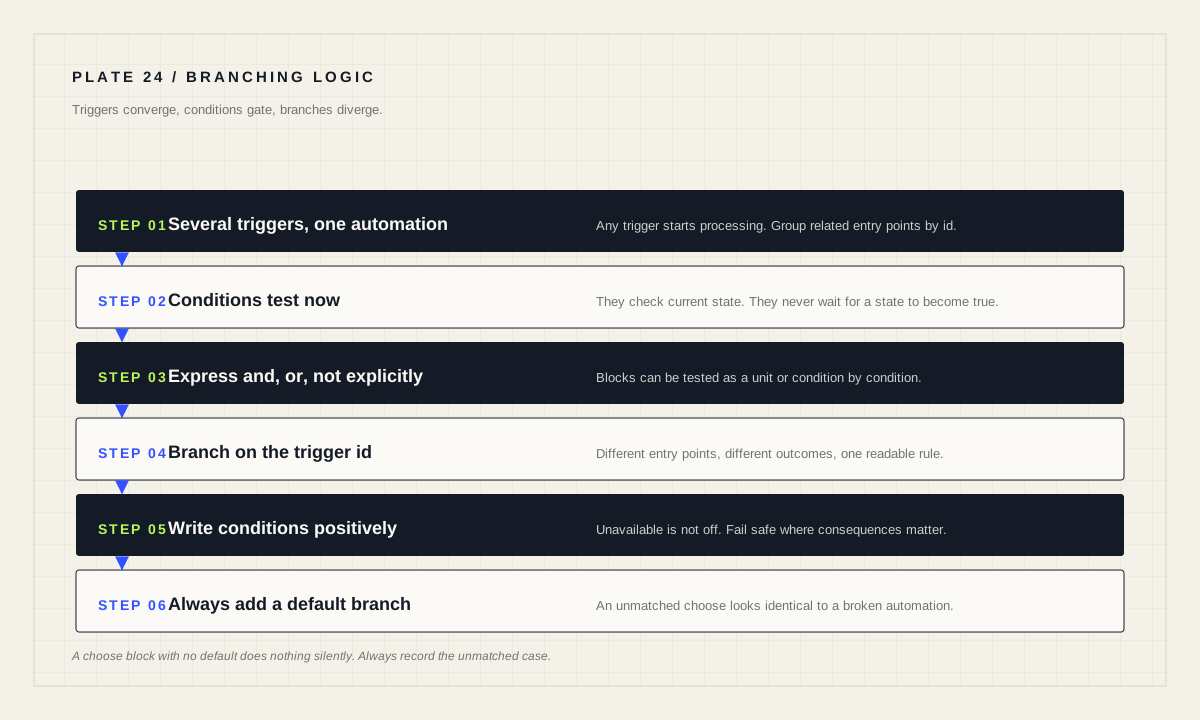
Keep triggers, conditions and branches in their proper jobs. Conditions are optional tests that prevent actions from firing when they are not met; they check current state and never wait. Give triggers an id and branch on it when several entry points need different outcomes. Prefer one automation with clear branches over several near-identical automations, and test each condition individually from the editor before trusting it.
A condition tests now; it does not wait
Conditions are an optional part of an automation that prevent an action from firing if they are not met. The critical property is timing: a condition evaluates the current state at the moment the automation runs. It does not wait for a state to become true, and it does not remember what was true a minute ago.
This trips people up constantly. “When the door opens and someone is home” works. “When the door opens and then someone comes home” does not — that is two events, and it needs either a second trigger or an explicit wait in the actions.
Say every rule aloud before building it. If the sentence contains “and then”, you probably need a second trigger. If it contains “while” or “if it is currently”, a condition is right.
And, or, not — and building blocks you can test
Multiple conditions listed together must all pass. When you need alternatives, use an explicit or building block; when you need to exclude a case, use not. Making the intent explicit matters more than saving a line, because a future reader — including you — must be able to tell “all of these” from “any of these” at a glance.
The editor rewards this structure. The documentation describes testing a building block such as an and condition, which reports whether the whole block registers as true or false, and you can also test individual conditions inside the block. A deeply nested tangle of implicit logic cannot be inspected that way; a clean block can.
conditions:
  # All of these must pass
  - condition: state
    entity_id: binary_sensor.someone_home
    state: "on"
  - condition: sun.is_set

  # Any one of these is enough
  - condition: or
    conditions:
      - condition: state
        entity_id: input_boolean.guest_mode
        state: "off"
      - condition: numeric_state
        entity_id: sensor.hallway_illuminance
        below: 30

  # And this must not be true
  - condition: not
    conditions:
      - condition: state
        entity_id: media_player.living_room_tv
state: "playing"Branch on which trigger fired
When one automation serves several entry points, trigger IDs are the clean mechanism. All triggers can be assigned an optional id; if omitted, it is set to the index of the trigger, and the ID can be referenced from trigger conditions and actions. IDs do not have to be unique, which lets you deliberately group several different triggers that should produce the same result.
That grouping is the underused half of the feature. Three ways of saying “we are going to bed” — a button, a voice command and a time — can share one ID and one branch, while a fourth trigger with a different ID takes a different path.
alias: "Evening routine — several entry points"
triggers:
  - trigger: state
    entity_id: binary_sensor.bedside_button
    to: "on"
    id: "bedtime"
  - trigger: conversation
    command:
      - "good night"
    id: "bedtime"
  - trigger: time
    at: "23:30:00"
    id: "fallback"
actions:
  - choose:
      - conditions:
          - condition: trigger
            id: "bedtime"
        sequence:
          - action: scene.turn_on
            target:
              entity_id: scene.bedtime
      - conditions:
          - condition: trigger
            id: "fallback"
        sequence:
          - action: light.turn_off
            target:
              entity_id: light.downstairs
    default:
      - action: persistent_notification.create
        data:
          message: "Evening routine ran with no matching branch."
mode: single
Note the default branch. A choose block with no default silently does nothing when no branch matches, which is indistinguishable from a broken automation when you are reading a trace at speed. A default that records what happened costs one block and saves an hour.
Disable parts instead of deleting them
When narrowing down misbehaviour, every individual trigger in an automation can be disabled without removing it by adding enabled: false. This is far better than commenting things out or deleting them, because the structure — and your intent — survives.
Triggers can also be disabled based on limited templates or blueprint inputs, which are evaluated once when the automation is loaded. That is how a blueprint can offer optional behaviour without shipping two versions of itself.
Apply the same discipline to branches. Keeping a branch present but inert, with a comment explaining why, means the next person to read the automation learns something. Deleting it means they rediscover the same problem from scratch.
Test each condition and each branch
The automation editor shows a condition's state as soon as you add it: hover the state indicator circle on the left of the condition row to see Condition passes, Condition did not pass, Invalid condition configuration, or Condition state unknown. Verification is automatic and continuous, so editing an option updates the reported state immediately.
Each condition can also be tested individually from the three dots menu on the condition row, and each action can be run individually with Run action, which reports Action ran successfully or Error running action with a dialog for details. The documentation notes the limit: complex automations that depend on previous blocks — trigger IDs, variables in templates, or action calls returning data for later steps — cannot be tested this way.
So test what can be tested in isolation, then exercise the whole thing with real triggers and read the trace. Both halves are necessary; neither is sufficient.
Branching review
- Every rule read aloud; “and then” converted into a second trigger.
- And / or / not expressed explicitly, not implied by ordering.
- Trigger IDs used where entry points differ, and grouped where they do not.
- Every
choosehas adefaultthat records what happened. - Conditions written positively where failing open would be harmful.
- Unavailable and unknown handled as their own branch.
- Conditions tested individually; whole automation exercised for real.
Source desk
Primary documentation used for this guide. Interface names and behaviors can change; confirm the current page before changing a live installation.
- Automation conditionsOfficial condition behaviour and building blocks.Official source ↗
- Automation triggersOfficial trigger IDs, grouping and per-trigger disabling.Official source ↗
- Testing and troubleshooting automationsOfficial condition state indicators and per-block testing.Official source ↗
Source review completed .
Frequent questions
Do Home Assistant conditions wait for a state to become true?
No. Conditions are optional tests that prevent an action from firing if they are not met, evaluated against current state at the moment the automation runs.
How do I run different actions depending on which trigger fired?
Give each trigger an id and branch on it with a trigger condition inside a choose block. If the id is omitted it defaults to the index of the trigger.
Can two triggers share the same ID?
Yes. The documentation notes the id does not have to be unique and can be used to group similar triggers that should lead to the same outcome.
How do I temporarily switch off one trigger?
Add enabled: false to that trigger. Every individual trigger can be disabled without removing it, and triggers can also be disabled through limited templates or blueprint inputs.
Why does my automation do nothing with no error?
A choose block with no matching branch and no default does nothing silently. Add a default branch that records what happened so traces stay diagnostic.