Bench answer
The reliable starting point
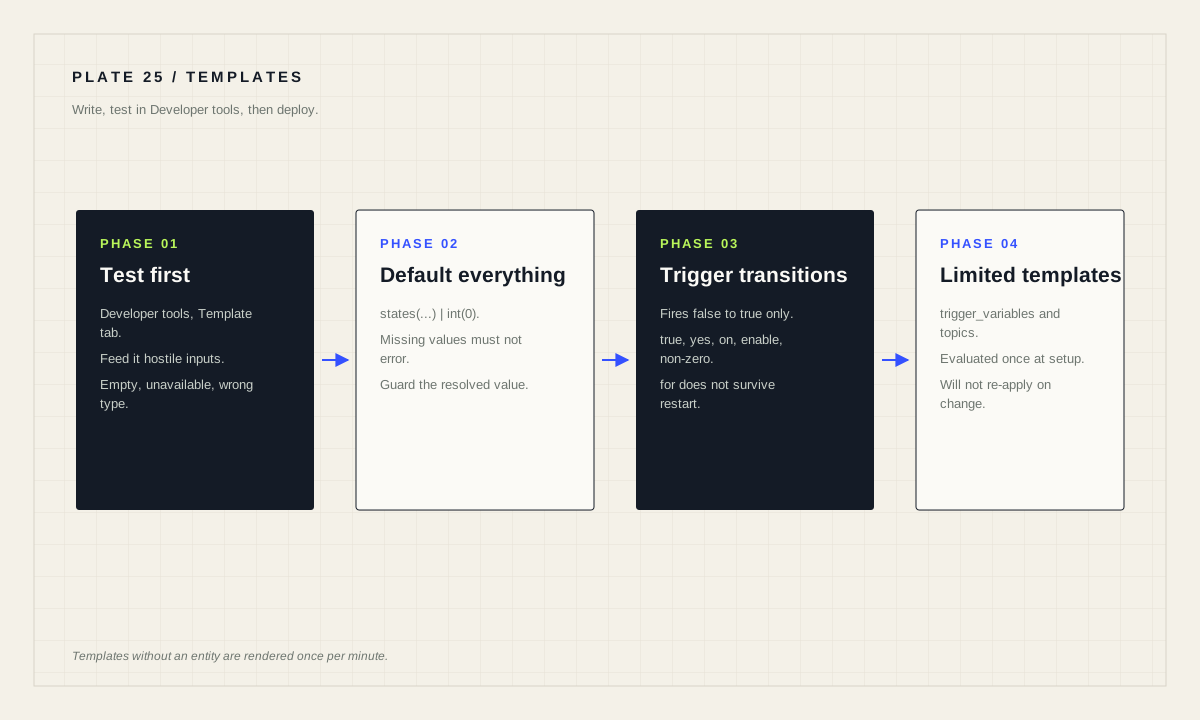
Test every template in Settings → Developer tools → Template before it reaches an automation. Give value lookups a default, as in states('input_number.minutes')|int(0), so a missing or non-numeric state cannot break the run. Know that a template trigger fires on the transition from false to true, and that templates which do not contain an entity are rendered once per minute. Some places accept only limited templates, evaluated once when the trigger is set up.
Use a template when the alternative is many automations
The honest case for templates is compression. One automation that reads a threshold from a helper replaces five automations with hard-coded numbers. One notification message that names the entity which triggered it replaces a dozen near-identical messages.
The honest case against them is debuggability. A misconfigured condition is visible in the editor; a subtly wrong template renders a plausible value and the automation proceeds confidently in the wrong direction. That asymmetry is why template work belongs in the template editor first.
A reasonable rule: reach for a template when it removes duplication or reads a value you cannot hard-code, and avoid it when a plain condition would say the same thing. Cleverness in a home automation is a cost paid by whoever debugs it at midnight.
The template editor is the whole workflow
The documented testing procedure is short and worth following exactly. Go to Settings → Developer tools → Template. Create all the variables your template needs, as described in the templating documentation on processing incoming data. Paste your template code straight after those variables. Then change the source values and check that the template behaves as intended and produces no errors.
That last step is the one people skip. Do not only test the case you expect; test the empty case, the unavailable case and the wrong-type case. Most template failures in production are not logic errors, they are assumptions about what the source will contain.
If you write automations in YAML, also use Developer tools → YAML and select Check configuration under Configuration validation, to make sure there are no syntax errors before restarting Home Assistant.
Give every conversion a default
The documentation's own example of reading a helper value shows the pattern to copy: {{ states('input_number.minutes')|int(0) }}. The 0 is not decoration. It is what happens when the entity is missing, unavailable, or holds something that is not a number.
Without a default, a conversion on a bad value raises an error mid-run, and the automation stops at that step. With a default, the automation continues with a value you chose deliberately — and you can branch on that value being the fallback if it matters.
# Read a threshold from a helper, with a safe fallback.
actions:
  - variables:
      quiet_minutes: "{{ states('input_number.quiet_minutes') | int(0) }}"
      target_light: "{{ trigger.entity_id | default('light.hallway') }}"
  - condition: template
    value_template: "{{ quiet_minutes > 0 }}"
  - action: light.turn_on
    target:
      entity_id: "{{ target_light }}"
Note the explicit guard: rather than assuming the helper holds a sensible number, the automation checks that the resolved value is greater than zero before acting. That converts a silent misbehaviour into a visible non-event you can see in the trace.
Template triggers fire on a transition, not on truth
A template trigger evaluates its template when any of the recognized entities change state, and fires if the change caused the template to render true when it was previously false. The documentation defines true precisely: a non-zero number, or any of the strings true, yes, on, enable. Anything else counts as false.
The word “previously” carries the weight. A template that is already true when the automation loads will not fire until it goes false and true again. If you need the current condition rather than a transition, a condition is the right tool, not a trigger.
Attribute changes can be evaluated too, using is_state_attr, and the trigger accepts a for option so it only fires once the template has remained true for a period — with the caveat, stated in the documentation, that for does not survive a restart or a reload of automations, and waiting automations are reset. The for template itself is evaluated at the moment the value template becomes true.
Limited templates and where they apply
Some places accept only limited templates. Trigger variables defined with the trigger_variables key at automation level can only contain limited templates, and the triggers will not re-apply if the value of the template changes. The documentation is explicit that trigger variables exist mainly to support using blueprint inputs in triggers.
The same one-shot behaviour appears elsewhere in trigger configuration. MQTT trigger topic and payload templates are only evaluated when setting up the trigger and are not re-evaluated for every incoming message. A webhook ID template is likewise only evaluated at trigger setup. Triggers disabled through limited templates or blueprint inputs are evaluated once when the automation is loaded.
The practical consequence: do not expect a limited template to react to changing state. If a value must be current at the moment of evaluation, put it in a condition or an action, not in the trigger configuration.
Keep templates readable and reviewable
Three habits keep this layer maintainable. Compute values into named variables in an early step rather than repeating the same expression in three places — the trace then shows the resolved value at one point instead of leaving you to infer it. Keep one template to one job. And write a short comment in the automation description saying what the template assumes about its inputs.
When something misbehaves, the trace is the right starting point: Step Details shows data and results of the highlighted step, which is where a rendered template value becomes visible. Reading the rendered value is nearly always faster than re-reading the template.
Finally, resist templating things that do not need it. An automation that a household member can read and roughly understand is a feature of the home, not a limitation of the engineer.
Template readiness
- Tested in Developer tools with realistic and hostile inputs.
- Every conversion has an explicit default.
- Missing and unavailable sources produce a chosen outcome, not an error.
- Template trigger transitions understood; conditions used where truth-now is meant.
- Limited-template locations identified and not expected to update.
- Values computed once into named variables.
- YAML validated with Check configuration before restart.
Source desk
Primary documentation used for this guide. Interface names and behaviors can change; confirm the current page before changing a live installation.
- TemplatingOfficial templating reference, including where templates may be used.Official source ↗
- Automation triggersOfficial template trigger semantics, limited templates and trigger variables.Official source ↗
- Testing and troubleshooting automationsOfficial template testing procedure and configuration validation.Official source ↗
Source review completed .
Frequent questions
Where should I test a Home Assistant template?
In Settings > Developer tools > Template. Create the variables your template needs, paste the template after them, then vary the source values and check for errors.
What counts as true for a template trigger?
A non-zero number, or any of the strings true, yes, on or enable. Anything else is treated as false, and the trigger fires on the transition from false to true.
Why does my template trigger not fire even though the template is true?
Template triggers fire on the transition from false to true. If the template was already true when the automation loaded, it must go false and true again.
What is a limited template?
A template accepted only in certain places, such as trigger_variables, which is evaluated once when the trigger is set up and does not re-apply when the underlying value changes.
Why should I add a default like int(0) to a template?
So a missing, unavailable or non-numeric state produces a value you chose instead of an error that stops the automation mid-run.