Bench answer
The reliable starting point
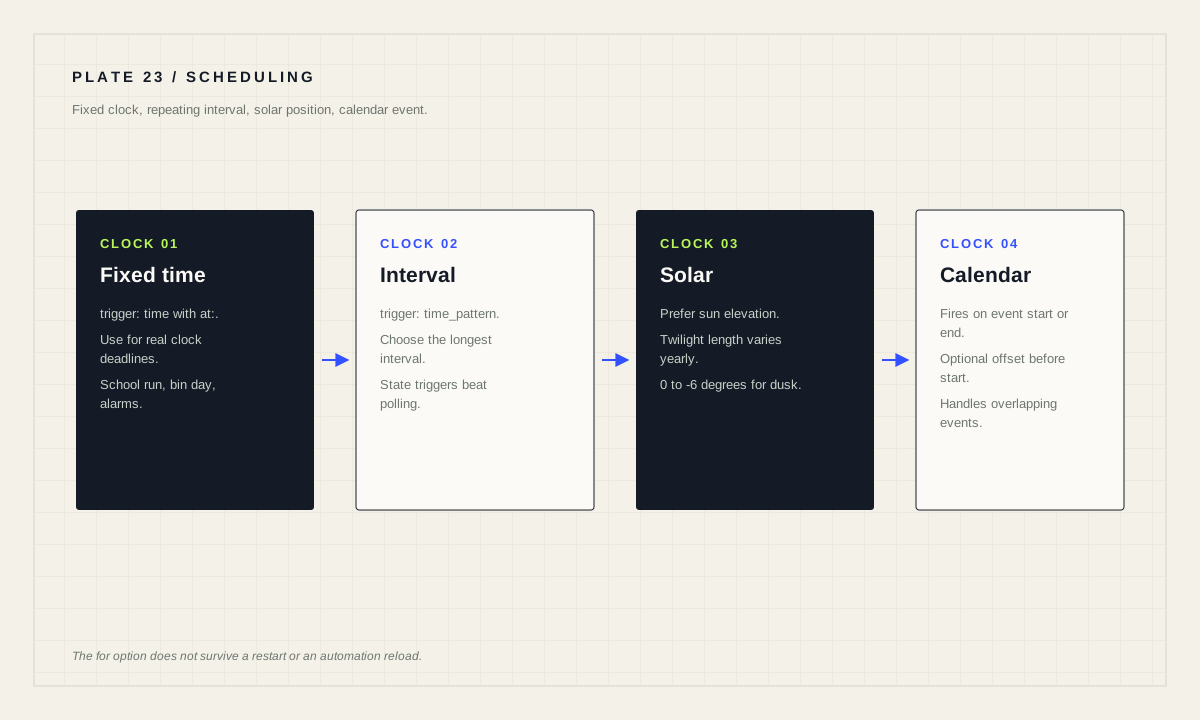
Use trigger: time with an at: value for a fixed clock time. Use trigger: time_pattern for a repeating interval, and give it a specific field such as minutes: 5 rather than leaving it broad. For anything about daylight, prefer a sun elevation trigger over sunset plus an offset, because twilight length changes through the year. Remember that the for option on triggers does not survive a Home Assistant restart or an automation reload.
Four different clocks, four different questions
Time trigger. A fixed clock time, written as trigger: time with an at: value such as "15:32:00". Use it when the household expectation is genuinely “at half past three”.
Time pattern trigger. A repeating interval, written as trigger: time_pattern. The documentation's own multiple-trigger example uses minutes: 5. Use it for polling, periodic checks and housekeeping.
Sun trigger. Fires when the sun is setting or rising — that is, when the sun elevation reaches 0° — with an optional offset given in seconds or hh:mm:ss, where a negative value fires before the event and a positive value after.
Calendar trigger. Fires when a calendar event starts or ends, with an optional offset, and the documentation notes this allows far more flexible automations than using the calendar entity state, which only supports a single event start at a time.
Choosing well starts by asking what the household actually means. “Every evening” is usually solar, not clock-based. “Before the school run” is clock-based. “When bin day comes round” is a calendar. Getting this right at the start removes most of the later fiddling.
Repeating intervals without flooding the system
Time pattern triggers are the answer to every “every five minutes” question, and the temptation is to make them broader than needed. A pattern that fires every few seconds across several automations turns a calm system into a busy one, and the cost is invisible until traces become hard to read and the recorder database grows faster than expected.
Two habits keep this healthy. First, choose the longest interval that still satisfies the requirement — a battery check every five minutes is not more correct than one every hour, merely more expensive. Second, ask whether the interval is really needed at all: a state trigger fires exactly when something changes, whereas polling asks repeatedly whether it has.
alias: "Scheduling patterns — pick one deliberately"
triggers:
  # Fixed clock time
  - trigger: time
    at: "15:32:00"

  # Repeating interval
  - trigger: time_pattern
    minutes: 5

  # Solar event with an offset
  - trigger: sun
    event: sunset
    offset: "-00:45:00"
conditions: []
actions:
  - action: light.turn_on
    target:
      entity_id: light.hallway
mode: single
When several time-based rules exist, prefer one automation with several triggers plus trigger IDs over several near-identical automations. All triggers can be assigned an optional id, which if omitted is set to the index of the trigger, and the ID can be referenced from trigger conditions and actions. IDs do not have to be unique, so they can group similar triggers that should lead to the same outcome.
Use sun elevation instead of sunset plus an offset
This is the single most useful correction in this guide. The documentation tips that because the duration of twilight differs throughout the year, it is recommended to use sun elevation triggers rather than sunset or sunrise with a time offset when you want an automation to run during dusk or dawn.
The reason is straightforward: “forty-five minutes after sunset” is a different amount of darkness in June than in December. An elevation trigger asks the question you actually mean — how low is the sun — and stays correct all year.
The documented pattern uses a numeric state trigger on the sun.sun entity's elevation attribute. For most automations intended to run during dusk or dawn, a number between 0° and −6° is suitable; the documentation's example uses −4.0. That range corresponds to civil twilight, defined as 0° > solar angle > −6°, which the documentation describes as approximately the limit at which solar illumination suffices for the human eye to distinguish terrestrial objects clearly under clear weather.
alias: "Exterior lighting on when dark outside"
triggers:
  - trigger: numeric_state
    entity_id: sun.sun
    attribute: elevation
    below: -4.0
actions:
  - action: switch.turn_on
    target:
entity_id: switch.exterior_lightingThe `for` option resets on restart
Trigger timers feel persistent and are not. The documentation states it directly for the template trigger: use of the for option will not survive a Home Assistant restart or the reload of automations, and during a restart or reload, automations that were awaiting for the trigger to pass are reset.
Any schedule that depends on “this has been true for two hours” therefore has a hole in it, and the hole opens exactly when you update Home Assistant. For a light that turns off after inactivity this is harmless. For a reminder that something has been left open, or a routine that only runs after a long quiet period, it can mean the event silently never happens.
The documented workaround is to change what holds the deadline: use the automation to set an input_datetime to the desired time, then use that input_datetime as an automation trigger to perform the actions at the set time. The deadline now lives in a helper entity that survives restarts rather than in volatile trigger state.
Calendars, day-of-week and windows between two times
“Only on weekdays” and “only between these hours” are usually conditions rather than triggers. Trigger on the event you care about, then gate it. That separation keeps a single automation readable and makes the trace obvious: you can see the trigger fired and the condition blocked it, rather than wondering why nothing happened.
For genuinely calendar-driven routines, the calendar trigger is the right tool. It fires on event start or end for a specified calendar entity and accepts an optional offset such as five minutes before the start, which is how a “leave now” reminder should be built. Because it works on individual events rather than the entity state, overlapping events behave sensibly.
Where several unrelated triggers should reach the same action, remember that you can attach multiple triggers to one automation and that any of them starting will begin processing. You can also list multiple entity IDs under one trigger with a nested list, and the trigger fires whenever it becomes true for any listed entity.
Test a schedule without waiting for it
Waiting until 06:30 tomorrow to find out whether a routine works is not testing. Use the automation editor's Run actions option to execute the whole action sequence while skipping all triggers and conditions — useful for proving the actions themselves are correct.
To test the conditions as well, go to Settings → Developer tools → Actions, choose Automation: Trigger, select the automation, and toggle whether to skip the conditions before performing the action. Note that trigger IDs are not active when running actions this way, so any logic that branches on which trigger fired needs a real trigger to be exercised properly.
Then verify the timing itself over a real day, and check the trace afterwards. A schedule that runs correctly at the wrong moment is the most common outcome of an untested time automation.
Schedule design gate
- Correct clock chosen: fixed time, interval, solar, or calendar.
- Intervals as long as the requirement allows.
- Daylight logic uses sun elevation, not sunset plus an offset.
- Any
fordependency reconsidered, or moved to a persisted deadline. - Day and time windows expressed as conditions, not extra automations.
- Actions proven with Run actions; conditions proven from Developer tools.
- One real trace reviewed after the first genuine firing.
Source desk
Primary documentation used for this guide. Interface names and behaviors can change; confirm the current page before changing a live installation.
- Automation triggersOfficial time, time pattern, sun, calendar and trigger ID behaviour.Official source ↗
- Testing and troubleshooting automationsOfficial Run actions and Developer tools trigger testing.Official source ↗
- Automation conditionsOfficial conditions used to gate time windows and days.Official source ↗
Source review completed .
Frequent questions
How do I run an automation every few minutes?
Use a time pattern trigger. The documentation's multiple-trigger example uses trigger: time_pattern with minutes: 5. Choose the longest interval that still meets the requirement.
Why should I use sun elevation instead of sunset with an offset?
Because the duration of twilight differs throughout the year. The documentation recommends sun elevation triggers for automations intended to run during dusk or dawn, suggesting a value between 0 and -6 degrees.
Does a trigger's for timer survive a restart?
No. The documentation states that use of the for option will not survive a Home Assistant restart or an automation reload, and waiting automations are reset.
How do I make a delay that survives a restart?
Set an input_datetime helper to the desired time from the automation, then use that input_datetime as a trigger to run the actions at the set time.
Should day-of-week rules be triggers or conditions?
Usually conditions. Trigger on the event you care about and gate it with a condition, so the trace clearly shows the trigger firing and the condition blocking.