Bench answer
The reliable starting point
Start in the visual editor with one low-risk device. Define one trigger, add only the condition you can explain in a sentence, choose an action with an obvious result, then save and inspect a real trace. Home Assistant does not require YAML for this workflow. Keep physical control available and test what happens when the source entity becomes unknown or unavailable.
Before you build: choose a harmless first routine
Pick a routine whose failure is inconvenient rather than dangerous. A desk lamp turning on after a door opens is a better first project than a lock, garage door, heater, alarm, water valve or essential light. Confirm that both entities already appear in Home Assistant and that their states change correctly in Settings → Developer tools → States. An automation can only react to the state Home Assistant receives; it cannot repair a sensor that reports late or incorrectly.
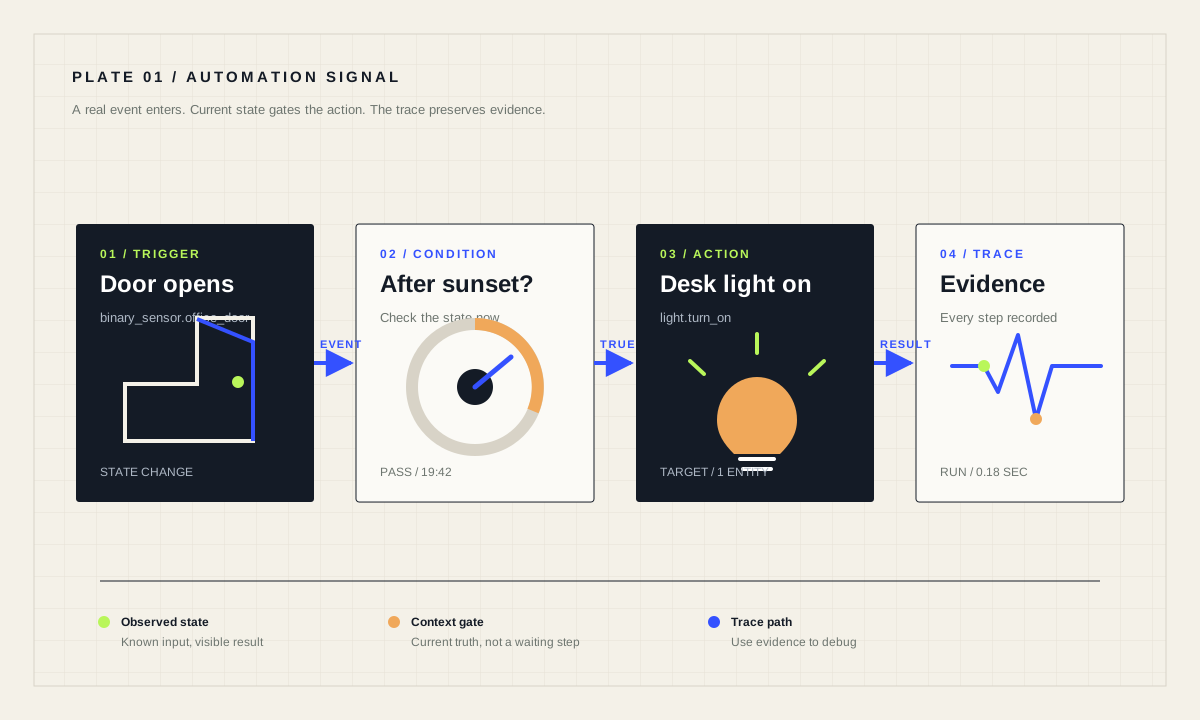
Write the routine in plain language before opening the editor: “When the office door opens, if the sun is below the horizon, turn on the desk lamp.” That sentence exposes the three moving parts and makes scope creep visible. It also gives you a test plan. If you cannot describe the rule without “and then maybe,” split it into a second automation or script.
Trigger, condition and action are different jobs
A trigger starts an evaluation when an event or state change occurs. A condition looks at current state after that trigger and decides whether actions may continue. An action changes something, sends a notification, activates a scene or runs another sequence. The distinction matters: a condition does not wait for its state to become true. If the door opens while the sun is above the horizon, a “Sun is set” condition simply blocks that run.
Prefer entity states you can inspect over opaque device events when both are available. Entity targeting is usually easier to move between devices and easier to diagnose. Device triggers remain useful when hardware exposes a button press or gesture without a persistent state. Give every automation a specific name and add notes about its purpose, dependencies and expected failure behavior.
- TriggerWhat changed?
- ConditionIs this run allowed now?
- ActionWhat should Home Assistant do?
Build it in the visual editor
Open Settings → Automations & scenes, create a new automation, then add the door entity as a state trigger from off to on. Add the Sun: Sun is set condition and a light.turn_on action targeting only the desk lamp. Unlike a time-bounded “after sunset” check, this typed condition stays true through midnight until sunrise. Save with a name that describes both cause and outcome, such as “Office door — desk lamp after dark.” Automations created in the editor become active after saving.
Check the target summary before saving. Targeting an area, floor or label can affect more entities than expected as the installation evolves. A narrow entity target is safer for a first routine. Avoid hard-coded delays until the basic path works; a delay can make a test appear broken when it is simply still running.
alias: "Office door — desk lamp after dark"
description: "Low-risk first routine; keep the wall switch available."
triggers:
  - trigger: state
    entity_id: binary_sensor.office_door
    from: "off"
    to: "on"
conditions:
  - condition: sun.is_set
actions:
  - action: light.turn_on
    target:
      entity_id: light.desk_lamp
mode: singleChoose what repeat triggers mean
An automation can trigger again while a previous run is active. The default single mode ignores the new run and records a warning. restart stops the current run and starts again if the conditions still pass. queued preserves accepted runs in order, while parallel allows independent copies to overlap. A queued run joins only if its conditions pass when it is triggered. Queued and parallel modes accept up to their configured max—10 runs by default—and log a warning when that limit is exceeded. There is no universally “best” mode; the correct choice follows from the consequence of a repeat trigger.
For a simple instant light-on action, single is normally sufficient. A motion routine with a delay before switch-off often uses restart so fresh motion restarts the countdown. A sequential notification or device command may need queued. Use parallel only when overlapping runs cannot conflict or multiply a risky action.
Small decision tool
What should happen if the automation triggers again?
Choose the behavior you need. The result explains the matching Home Assistant run mode; it does not change your installation.
singleBest when a second run would be redundant or unsafe.
Test the action, then test the real path
The editor can run an individual action immediately. Use that first to confirm the target responds. The editor’s Run actions command runs the action sequence but deliberately skips triggers and top-level conditions, so it is not proof that the complete automation works. Trigger the real door sensor next, then open the automation trace.
A trace shows which trigger fired, which conditions passed or failed, action results and timing. If a condition blocks the run, inspect the recorded state instead of guessing. YAML automations need an id for stored traces. Home Assistant stores recent traces by default; the trace configuration can retain more when intermittent faults require a longer sample.
Test at least four cases: the allowed state, the blocked state, a repeat trigger, and an unavailable source or target. Restore any altered state after testing and document anything another household member would need to know.
Design the failure state before adding complexity
Networked entities may briefly be unknown during startup or unavailable when a device, hub or integration cannot report. A state trigger restricted from off to on will not treat every recovery as a real door opening, which reduces surprises. Conditions should reject uncertain states when the action has meaningful consequences.
Do not use a hobby automation as a certified safety system. Home Assistant can complement notifications and convenience routines, but it should not replace smoke alarms, required emergency lighting, access-control safeguards or equipment interlocks. For higher-impact devices, add explicit confirmation, rate limits, a manual fallback and a clear recovery procedure.
First-run checklist
- Entities report sensible states before the automation exists.
- The target contains only the intended device.
- Manual control remains available.
- Blocked, repeated and unavailable cases were tested.
- A real trace confirms the complete path.
Source desk
Primary documentation used for this guide. Interface names and behaviors can change; confirm the current page before changing a live installation.
- Understanding automationsOfficial trigger, condition and action model.Official source ↗
- Automation editorOfficial visual-editor workflow and target inspection.Official source ↗
- Sun is set conditionOfficial typed condition that remains true from sunset until sunrise.Official source ↗
- Automation modesOfficial single, restart, queued and parallel behavior.Official source ↗
- Testing and troubleshooting automationsOfficial action testing, traces and YAML notes.Official source ↗
Source review completed .
Frequent questions
Do I need YAML to create a Home Assistant automation?
No. The visual editor supports triggers, conditions and actions without writing YAML. YAML remains useful for review, sharing and some advanced patterns, but it is not a prerequisite.
What is the difference between a trigger and a condition?
A trigger reacts to an event or state change and starts a run. A condition checks current state after that start and either allows or blocks the actions; it does not wait to become true.
Why did Run actions ignore my trigger and condition?
That editor command intentionally executes only the action sequence. Test actions safely there, then create the real event and inspect a trace to verify the complete automation.
Which automation mode should I use?
Use single when a second run is redundant, restart when the latest event should replace the current run, queued when accepted runs must keep order, and parallel only for independent overlapping runs. Queued and parallel honor a configurable maximum of 10 runs by default.
Why is there no trace for my YAML automation?
Automations defined in YAML need an id for stored debugging traces. After adding one and reloading the configuration, create a real trigger and check Traces again.